Managing positions (the Manage page)
Use Manage to collect fees, close positions, sell tokens or change a whole ladder.
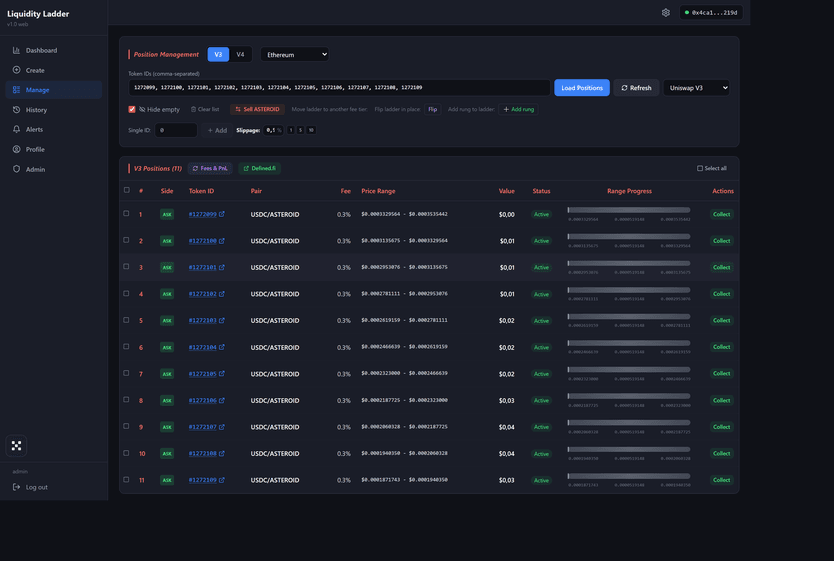
Loading positions
Open a ladder in either of these ways:
- Click it in Active Ladders on the Dashboard.
- Click View Positions after creating it.
Its positions load automatically. To find positions by their NFT numbers (Token IDs), for example if you created them outside Liquidity Ladder:
- Select V3 / V4, the network and the DEX.
- Enter the numbers in Token IDs (comma-separated).
- Click Load Positions.
The nearby controls let you:
- Refresh — update the loaded positions.
- Single ID → Add — add one position to the list.
- Hide empty — hide positions with zero liquidity. On by default.
- Clear list — clear the list on screen. This does not close any positions.
- Slippage — set the slippage tolerance for swaps on close. Quick values: 1%, 5%, 10%.
The position table
Each row shows the position number, pair, pool fee, price range, value and available actions.
- Side — BID, ASK, or BOTH when the current price is in range.
- Token ID — a link to the position on the DEX.
- Pair — click a token symbol to copy its address.
- Status — Active for a position with liquidity, Empty for an empty one.
- Range Progress — where the current price sits relative to the range.
Click Fees & PnL to load unclaimed fees and PnL. The summary shows Total Value, Unclaimed Fees, Net PnL and DPR, the daily return measure.
Defined.fi opens an external pool chart.
The pool chart
When the displayed positions belong to one pool and its price is known, a row with the token name or Pool price appears below the list. Click it to expand the chart. Loading another pool collapses it again.
The chart shows the token’s USD price and the loaded ladder’s boundaries. Two lines mark its lower and upper bounds; full-range positions are excluded. You cannot drag the boundaries here: they belong to existing positions.
Timeframes and the A and L buttons work as they do on Create. There is no rung histogram or Ladder toggle.
The chart is not shown for positions from multiple pools. You can also turn it off in Settings with Hide the pool chart on Create and Manage.
Position actions
Collecting fees
Collect transfers accrued fees to your wallet. The positions stay open.
For one position, click Collect in its row. For several, select them and click Collect (N). Batch collection skips positions with less than $0.0001 in fees to avoid spending gas on them.
Closing
- Select positions and click the red Close N button.
- Choose whether to swap. Without Swap tokens, you receive the position’s tokens. With it enabled, the volatile token is sold for the pair’s quote token, such as USDT or WETH.
- If swapping, review Swap Preview: the token being sold, expected output, route and tolerances. Click Confirm Swap. Skip preview bypasses this screen.
- A PnL card appears after closing. You can copy or save it.
Swaps are available on all four networks.
Which aggregator routes the swap
Choose it in Settings, under Swap aggregator:
- Auto — Kyber where available, including Robinhood Chain.
- Kyber — use Kyber.
- Relay — an alternative on Robinhood Chain.
- Matcha (0x) — available on every network; select it manually.
Max price impact does not apply to Matcha because it does not provide that figure. The application checks the exchange rate against an on-chain pool price instead. This check uses a wider tolerance; see Settings.
If the swap fails
If closing succeeds but the swap fails, the tokens stay in your wallet. You do not need to close the positions again.
The Swap Failed dialog offers to retry the swap. The button shows the retry tolerance, Retry (5% slippage) by default. This value is set separately and does not change ordinary Slippage.
The retry’s price-impact check may use a different limit or be disabled, depending on Price impact on swap retry. If the error says that price impact could not be verified, the retry runs without that check. Read the terms in the dialog before retrying.
The retry uses the same aggregator.
Selling the accumulated token
Sell …, for example Sell ASTEROID, sells your entire wallet balance of that token for the pair’s quote token. This is useful after closing without a swap.
The sale also includes tokens you held before closing the position.
Whole-ladder operations
When an operation is available for the loaded ladder, its button appears above the table:
-
Migrate — move the ladder to a pool of the same pair with a different fee. The old positions close and the new ones open in one transaction, without a swap. Review the new pool, position count and ranges in the dialog.
Keep preserves the rung count; Max selects maximum density. You can also enter a count. When changing density, choose whether to keep the existing price boundaries or shift the range by the price difference between pools. Shifting preserves the distance from the current price but changes the boundary prices themselves. Fees can go into the new ladder or return to your wallet — see Migrate in Settings.
-
Flip — redistribute a one-sided ladder’s tokens in the same pool without a swap. Choose Original or Spot and review the new ladder. Collected fees return to your wallet.
-
Add rung — add an outer rung: ▼ Bid below the price or ▲ Ask above. The amount is filled in automatically; you can change it before confirming.
Broadcast but not confirmed means the transaction was sent but its result is not confirmed yet. Open it in the network explorer and refresh Manage. Do not repeat the operation until you know the result: the first transaction may still complete.