Price alerts and TP/SL (the Alerts page)
Telegram notifications about price movement across your ladders, and automatic closing on a stop-loss or a take-profit.
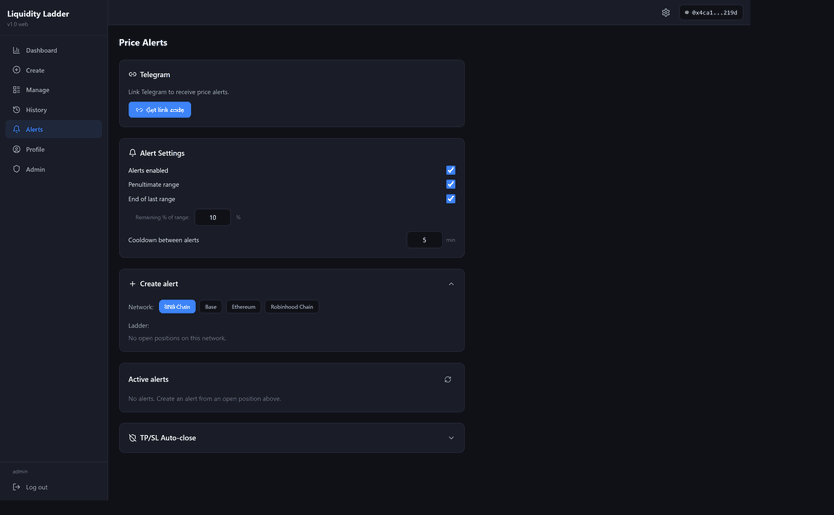
This section exists only on the private version (an experimental, invite-only site). liquidityladder.app has no Alerts section.
Linking Telegram
- Press “Get link code” in the “Telegram” card.
- A command of the form
/link <code>appears — copy it with the button next to it. - Send that command to the bot on Telegram; a green “Linked” status follows.
“Unlink” disconnects Telegram, and every alert is deactivated with it.
Alert Settings
- Alerts enabled — the master switch.
- Penultimate range — notify when the price enters the ladder’s second-to-last rung.
- End of last range — notify near the end of the last rung; the “Remaining % of range” field sets how far from the edge it fires.
- Cooldown between alerts — the minimum pause between notifications, in minutes.
Creating an alert
In the “Create alert” card:
- Pick the Network.
- Pick the ladder from your open positions (pair, position count, range).
- Alert type: Bottom bound, N% of range (the end of the last rung) or Custom price.
- Direction: Below / Above.
- Check the Trigger line (for example
≤ $0.85) and press “Create alert”.
Every alert is listed in the “Active alerts” card, where you can mute one temporarily (the bell icon) or delete it (the bin).
TP/SL Auto-close
The “TP/SL Auto-close” section closes a ladder automatically when it reaches a stop price or a profit target.
This works only for ladders on the built-in wallet — the server has to be able to sign the close itself. Ladders on an external wallet are rejected.
- Pick the network and the ladder.
- Fill in “Stop price (USD)” (an absolute stop price) and/or “Take-profit (%)” (a percentage of the amount invested) — either one, or both.
- Action: Close (just close) or Close + swap (close and sell the volatile token straight away).
- Set the Slippage (and optionally Retry slippage — a raised slippage for the second attempt).
- Press “Activate SL/TP”.
Active rules appear under “Active SL/TP rules” with SL ≤ $… / TP +…%
badges, and a rule can be cancelled (the bin). If a rule shows “requires
attention”, confirm the action in the Telegram bot.